Build Comparison
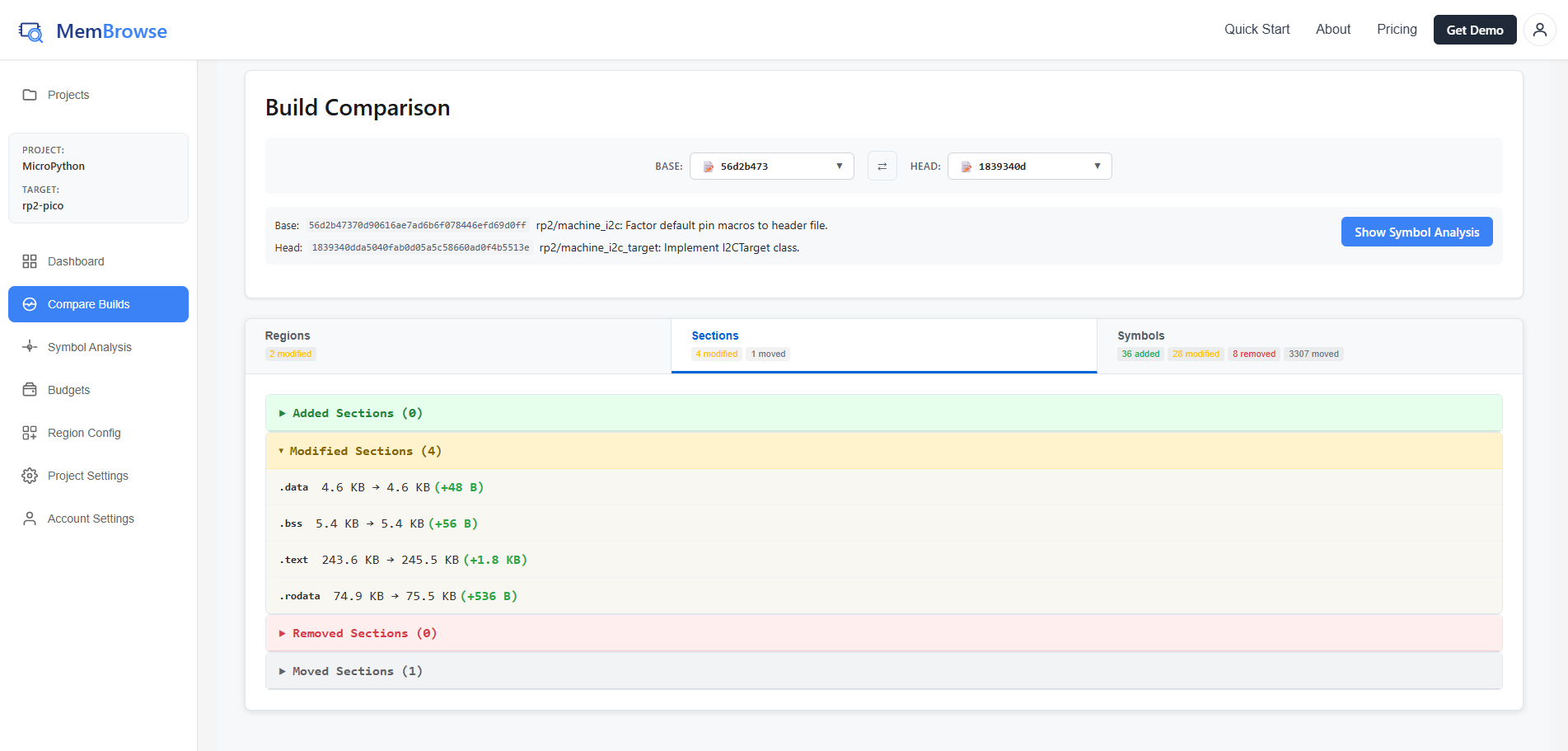
Find exactly what changed between two builds. To open this view, click any commit row in the Target Dashboard commit history.
Why Compare Builds?
Comparing builds helps you:
- Debug memory regressions: Pinpoint exactly which symbols grew when memory spiked
- Validate optimizations: Verify your changes actually reduced memory as expected
- Review PRs effectively: See the complete memory impact before merging
- Understand refactors: Track how code reorganization affects memory layout
Build Selector
At the top of the page, select a base and head build to compare. Use the swap button to switch them. The commit details bar below shows the SHA and message for each selected build.
Click "Show Symbol Analysis" to switch to the Symbol Analysis view for the same two builds.
Comparison Tabs
The comparison is organized into three tabs, each showing counts of added, modified, removed, and moved items:
Regions Tab
Shows changes to memory regions between the two builds:
- Added regions: New regions with capacity and utilization
- Modified regions: Old to new comparison with deltas and health indicators
- Removed regions: Regions no longer present
Sections Tab
Shows changes to memory sections:
- Added sections: New sections with name, size, and address
- Modified sections: Size changes and region moves
- Removed sections: Sections no longer present
- Moved sections: Sections that changed address
Symbols Tab
Shows changes to individual symbols:
- Added symbols: New functions or variables with size, section, and type
- Removed symbols: Deleted symbols
- Modified symbols: Size, binding, or type changes
- Moved symbols: Symbols that changed address
Common Comparison Patterns
Version Release Review
When releasing a new version, compare the release commit against the previous version to get a complete summary of memory changes across the release cycle.
Finding a Regression
When you notice memory increased:
- Select the "good" commit as base and the "bad" commit as head
- Check the Regions tab for which regions grew
- Drill into the Symbols tab to find the largest additions
Validating an Optimization
After optimizing code:
- Compare before and after commits
- Verify expected symbols decreased in the Symbols tab
- Check the Regions tab for the overall impact