Memory Budgets
Set memory limits and get alerted when usage exceeds thresholds.
Why Use Memory Budgets?
Memory budgets prevent regressions from shipping by failing CI when limits are exceeded. They are essential for:
- Preventing accidental bloat: Catch when debug code, unused features, or large libraries slip into release builds
- Staying within hardware constraints: Ensure your firmware fits in the available FLASH and RAM
- Enforcing team standards: Set limits that all PRs must meet before merging
Accessing Budgets
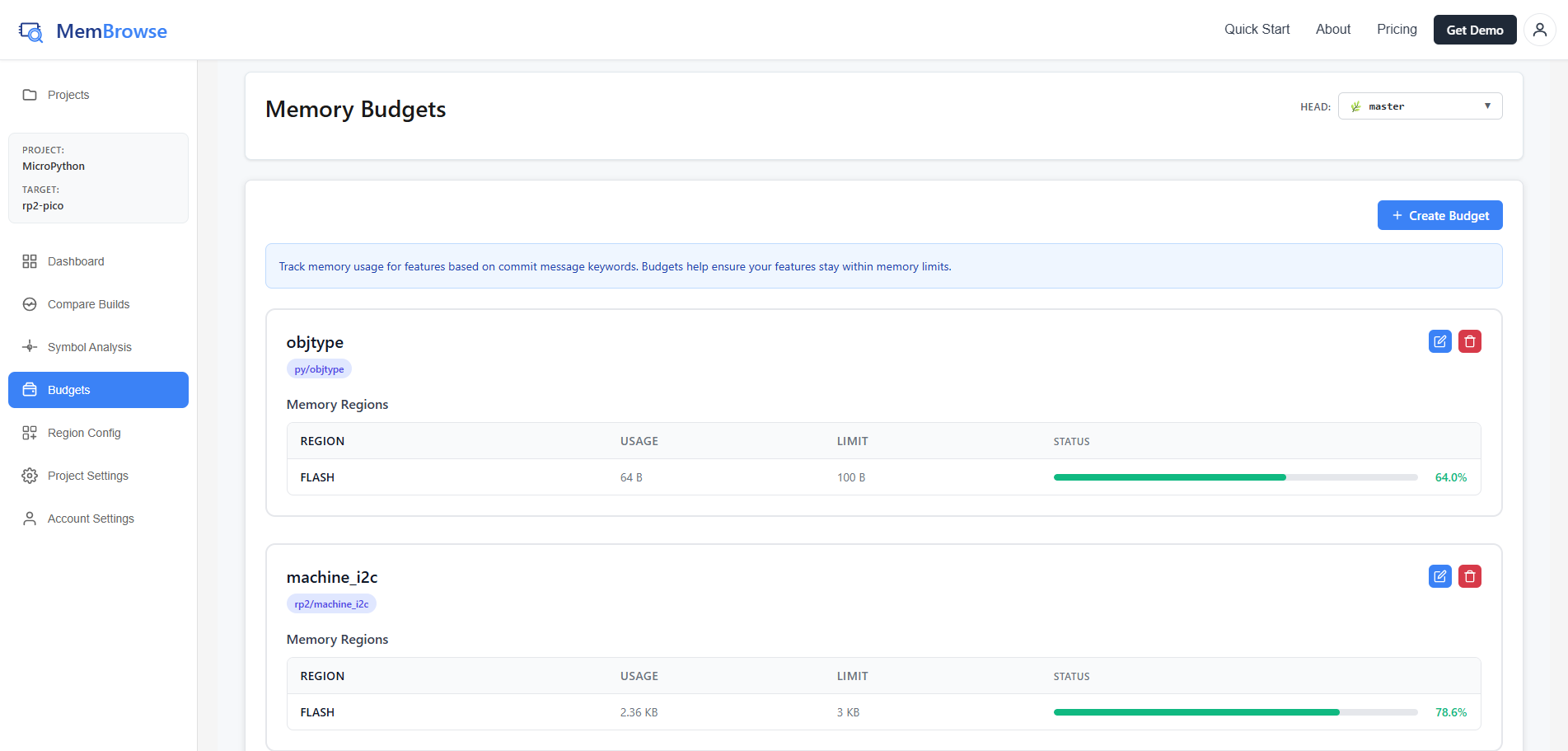
Budgets are configured per target. Select Budgets from the sidebar when viewing a target. Use the branch selector at the top to choose which branch to view budgets for.
Creating a Budget
- Click "Create Budget"
- Enter a budget name
- Set keywords (comma-separated) to filter which commits this budget applies to. Keywords are matched against commit messages, so you can use a Jira ticket (e.g.,
PROJ-123), a feature name, or any other term to scope a budget to specific work. - Set the memory limit and unit
- Click Save
Each budget card shows the name, keywords, memory limit with a progress bar, and current usage vs. limit.
Editing and Deleting Budgets
Click Edit on a budget card to modify its name, keywords, or limit. Click Delete to remove it. Only project owners can create, edit, or delete budgets.
CI Integration
When a budget is exceeded:
- Portal: The budget card shows usage over the limit
- CI Exit Code:
membrowse report --uploadexits with code 1
To continue CI despite violations:
membrowse report build/firmware.elf "linker.ld" \
  --upload \
  --target-name my-target \
  --api-key YOUR_API_KEY \
  --dont-fail-on-alerts